

Learn how to optimize your computer power and graphic settings in the video below. The video covers how to optimize the Power Options and NVIDIA graphics card settings.
Applying Registry Edits
Most newer computers no longer have some of the power options shown in the video as available to edit. To expose the USB Selective Suspend and Maximum Power settings featured in the video, you must run the regsitry edits linked below.
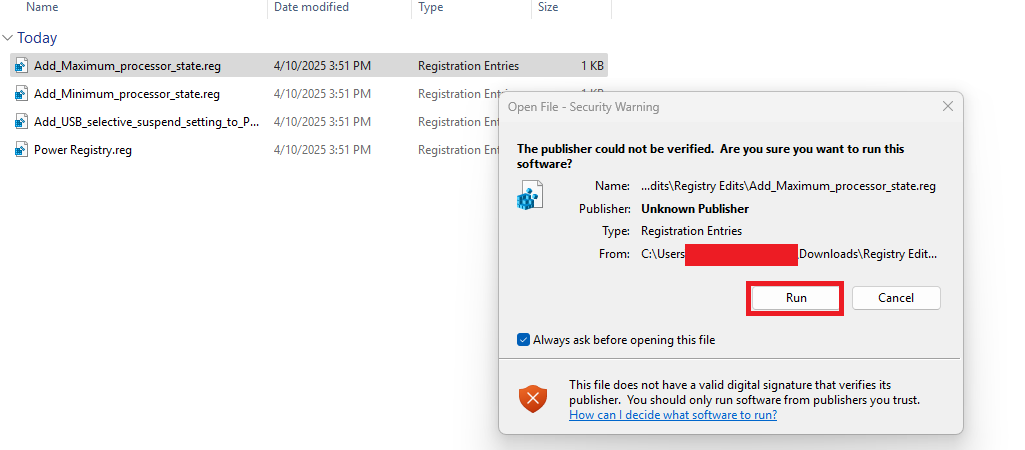
To run the Registry Edits:
- Unzip (Extract) the file.
- Double-click on each *.reg file and click Run to confirm you want to run the edits
Applying Windows 11 Power Settings
To apply Windows 11-specific power optimizations, right click on the Windows icon → Select Power Options from the menu.
Under Power Mode, select “Prefer Maximum Performance.”